6 Best Editing Software For Fiber Arts To Master
Master your craft with the 6 best editing software for fiber arts. Streamline your design process and elevate your pattern making today. Click to start creating.
The transition from finishing a beautiful hand-knit garment to presenting it to the world requires a different set of tools than needles and yarn. High-quality fiber arts content relies on visual clarity, accurate color representation, and professional-grade layout design. Mastering the right software turns a simple snapshot into a compelling showcase of your craft. Choosing the correct platform ensures that the hours spent on tension control and blocking are finally done justice.
Canva: Best for Social Media and Branding
Canva excels at translating the texture of a finished shawl or the crispness of cable work into cohesive social media assets. It serves as an intuitive hub for creating project collages, Instagram stories, or branded pattern covers without requiring a background in graphic design.
The platform relies on a drag-and-drop interface, which is ideal for knitters who would rather spend time at the loom or behind the needles than struggling with complex software. Users can easily align photos of their gauge swatches with text overlays detailing needle sizes, yarn weights, and stitch counts.
However, Canva is a design tool, not a photo editor. While it handles layout beautifully, it lacks the advanced color-correction tools necessary for true professional photography. Use it as the final step in your process, once your images are already sharpened and balanced.
Adobe Lightroom: For Pro-Level Finished Photos


Lightroom is the industry standard for ensuring that a yarn’s true color comes through on screen. Fiber arts are notoriously difficult to photograph because subtle shifts in hue—like those found in hand-dyed wool or variegated mohair—can easily wash out under improper lighting.
This software offers precise control over highlights, shadows, and white balance, allowing for the correction of yellow-tinted indoor lighting that often makes white wool look dingy. By adjusting the “luminance” of specific colors, you can make the depth of a deep indigo or a vibrant copper pop without sacrificing the delicate details of the stitch pattern.
While the learning curve is steeper than basic mobile filters, the ability to create and save “presets” is a game changer for brand consistency. If you consistently photograph your knits in the same home studio space, one click can apply the perfect settings to your entire project gallery.
Stitch Fiddle: Best for Custom Chart Creation
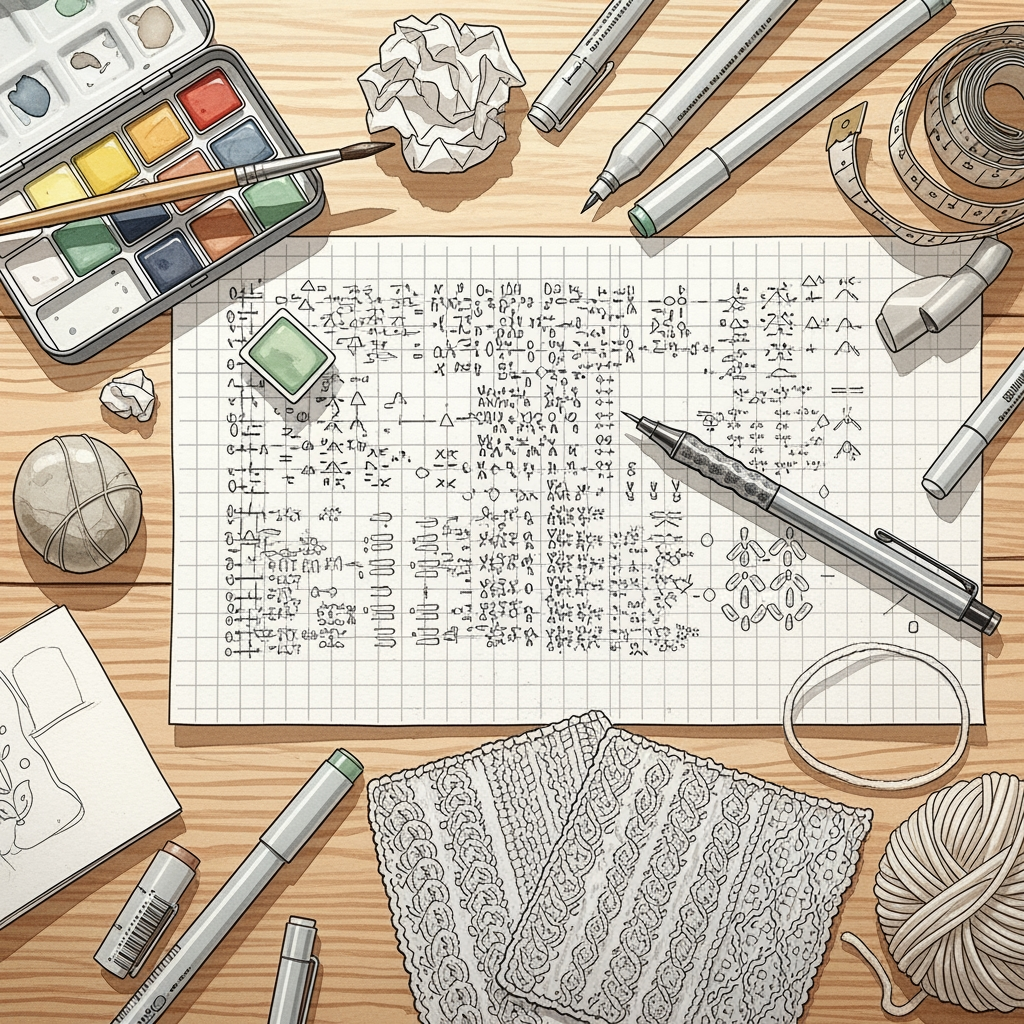
Stitch Fiddle acts as a digital bridge between a designer’s vision and the actual grid required for colorwork, lace, or cable patterns. It allows for the rapid creation of clear, readable charts that prevent the confusion often caused by hand-drawn sketches.
The platform provides a grid-based interface where each square corresponds to a single stitch. Users can map out fair isle motifs or complex lace repeats with ease, automatically generating key symbols to guide the maker.
The main advantage here is readability; a professional-looking chart is far more likely to result in a successful finished project for your readers. A clean, high-contrast chart ensures that the knitter can keep their place, reducing the chance of an accidental “dropped” stitch or an incorrect cross in a cable.
CapCut: Your Go-To for Viral Video Tutorials
Short-form video is the most effective way to demonstrate techniques like the long-tail cast-on or the intricacies of grafting stitches in Kitchener stitch. CapCut provides a mobile-first editing experience that makes syncing visual clips with clear, instructional voiceovers straightforward.
Because fiber arts are visual and tactile, video content captures the drape of a fabric or the bounce of a yarn in ways that still photos cannot. The app includes features like auto-captioning, which is critical for making tutorials accessible to those watching without sound.
When editing tutorials, prioritize pace and clarity over flashy transitions. Cut out the moments where you are merely fumbling with a stitch, and focus on the needle movement and the yarn tension. Keep your cuts tight to hold the viewer’s attention.
Snapseed: Best for Powerful Mobile Photo Edits
Snapseed is a robust mobile editor that brings professional-level control directly to your smartphone. It is perfect for those who finish a project, take a quick photo, and want to share it before the energy of the project fades.
The “Selective” tool is particularly useful for fiber artists; it allows you to increase the brightness or structure of a specific section of a photo, such as an intricate lace edge, without affecting the entire image. This helps maintain the focus on the focal point of the garment.
While it is a mobile app, its capabilities rival desktop software for most standard tasks. Avoid the temptation to over-filter; in the world of fiber arts, the viewer wants to see the actual texture of the stitches, not a stylized, heavily blurred effect.
Adobe InDesign: For Pro-Level Pattern Layouts
Adobe InDesign is the gold standard for creating final PDF patterns that look like they belong in a published book. It manages complex multi-page documents, ensuring that text, high-resolution imagery, and charts all stay perfectly aligned.
Creating a professional pattern requires more than just typing instructions; it requires a hierarchy of information. InDesign allows you to use master pages to keep page numbers, headers, and pattern names consistent throughout a lengthy document.
This is an investment of time and resources, suitable for designers ready to sell their patterns globally. It provides the control needed to ensure that fonts are legible and that diagrams aren’t compressed to the point of pixelation.
How to Choose the Right Software For Your Craft
Selecting the right tools depends entirely on your specific goals as a maker or designer. If you are documenting your personal projects for a blog, a mobile-based workflow using Snapseed and Canva is likely sufficient.
If your goal is to release high-quality, professional patterns for sale, move toward Lightroom for photography and InDesign for layout. Do not feel obligated to adopt every tool at once; the software should serve your output, not dictate your time.
- For Social Media: Canva
- For Pattern Design: Stitch Fiddle and InDesign
- For Photography: Lightroom and Snapseed
- For Education: CapCut
Key Tips for Photographing Your Knits & Makes
Natural, indirect light is the best friend of every fiber artist. Avoid harsh, direct sunlight, which causes deep, distracting shadows that hide the stitch definition of your project.
Focus on the texture; move your camera close enough to show the ply of the yarn and the consistency of your tension. Always capture a “full length” shot to show the drape, followed by “detail shots” that feature the specific elements like buttonholes, color transitions, or hem edges.
A neutral background—such as a clean wooden table or a simple linen fabric—will help your colors stand out. If the yarn is light and airy, a dark background provides contrast; if the yarn is dark or complex, a lighter background prevents the details from being lost in shadow.
Free vs. Paid Software: What Do You Really Need?
Free software is perfectly adequate for hobbyists and those just starting to share their work. Many free versions of apps like Canva or Snapseed offer more features than most users ever actually require.
Paid software typically offers two major benefits: the removal of branding or watermarks and advanced automation. For example, paid versions of design software often allow for cloud storage and the ability to export in higher resolutions, which is essential if you intend to print your patterns.
Start with the free version of any tool to see if the interface matches your workflow. Upgrade only when you encounter a specific limitation that prevents you from completing a task, such as a need for higher-quality exports or more complex editing options.
What Makes a Knitting Pattern PDF User-Friendly?
A user-friendly pattern prioritizes readability above all else. Use clear, large fonts and maintain plenty of “white space” between paragraphs so the reader can easily scan for their next step.
Including a “Key” or “Abbreviations” section at the beginning is non-negotiable, as is a clear structure that organizes instructions by project size. Always include a link to a video tutorial if your project features a technique that is difficult to explain with text alone.
Lastly, make sure the file is optimized for size without sacrificing image quality. A massive file is difficult to download on a mobile device, but a pixelated chart is useless to a knitter who needs to count stitches accurately.
Mastering these digital tools is the final stage of the making process, ensuring that the integrity of your work remains intact from the needles to the screen. By focusing on clarity, professional layout, and accurate color representation, you honor the effort invested in every row.