7 Best Pressure Sensitive Styluses For Thick And Thin Lines
Find your perfect match among these 7 best pressure sensitive styluses for thick and thin lines. Improve your digital art precision by reading our guide now.
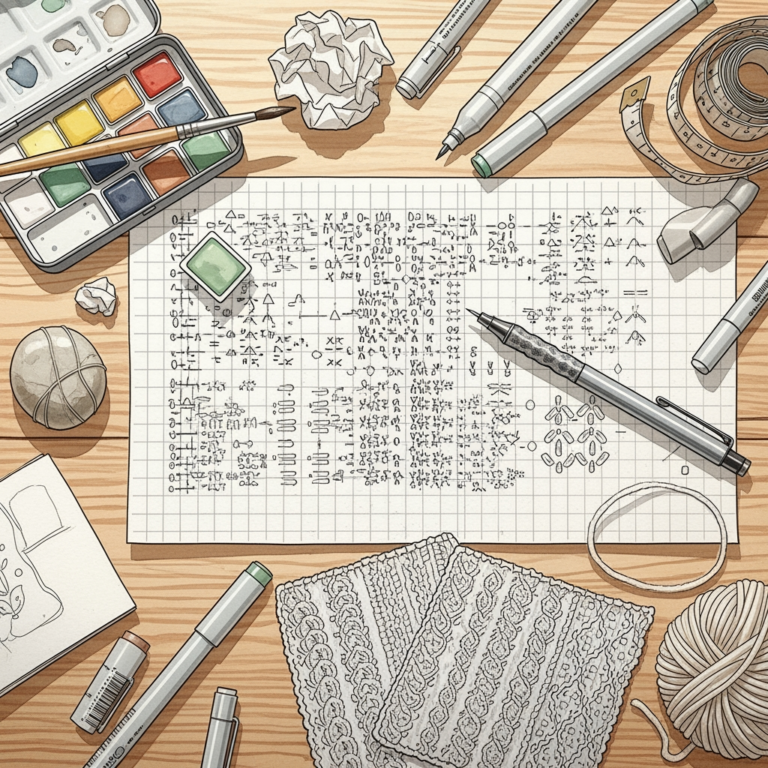
Drafting complex colorwork patterns requires the same level of precision as selecting the perfect yarn weight for a gauge swatch. While many designers rely on graph paper and pencils, digital tools offer a level of flexibility that traditional media simply cannot match. Investing in a high-quality stylus transforms an iPad or tablet into a dynamic design studio for stitch mapping. The following guide explores the best pressure-sensitive options to help you transition from hand-drawn sketches to professional-grade knitting charts.
Apple Pencil (2nd Gen): The iPad Designer’s Choice


The Apple Pencil stands as the gold standard for iPad-based chart design. Its integration with iOS is seamless, offering near-zero latency that feels as natural as drawing with a sharp pencil on drafting paper.
For designers mapping out intricate cables or lace motifs, the pressure sensitivity is remarkably accurate. When drawing individual stitch symbols, the ability to control line weight allows for the differentiation between standard knits and complex, multi-strand decreases.
Because it magnetically snaps to the side of the iPad for charging, it is always ready when inspiration strikes. It is the most reliable tool for those who already use an iPad for stitch software, though the high price point remains a significant barrier for casual hobbyists.
Wacom Pro Pen 2: For The Dedicated Digital Artist
Wacom remains the industry titan for a reason, providing a tactile experience that mimics real-world drawing implements. The Pro Pen 2 features an incredible 8,192 levels of pressure sensitivity, making it the ultimate tool for precision work.
In the context of pattern design, this level of sensitivity means that even the faintest marks are registered with absolute clarity. It is perfect for designers who spend hours refining complex fair isle motifs or drafting custom schematics for specialized silhouettes.
The trade-off is that this pen requires a Wacom-compatible graphics tablet, rather than a standalone tablet. It is an investment meant for serious designers who prioritize technical performance over portable convenience.
Microsoft Surface Pen: Best For Windows Creativity
The Surface Pen is the primary choice for designers who prefer the Windows ecosystem for their pattern software. It offers a natural writing feel, complete with a rubberized tip that provides just enough friction against the screen.
When designing stitch charts, the friction mimics the drag of a metal knitting needle moving across a wool surface. This tactile feedback helps maintain control when drawing small, repeating symbols, preventing the cursor from sliding too quickly across the glass.
The pen utilizes a replaceable battery, which is a consideration for those who prefer not to manage charging cables. It is an excellent middle-ground tool that bridges the gap between professional digital art and daily design documentation.
Logitech Crayon: A Budget-Friendly iPad Option

The Logitech Crayon offers a robust, kid-proof design that functions flawlessly with all recent iPad models. It lacks pressure sensitivity, which is a major compromise, but it makes up for this with its unique, ergonomic shape.
For basic charting where symbols remain a consistent weight, the lack of pressure sensitivity is hardly noticeable. It is ideal for sketching out general shapes and layout ideas for a sweater, where a simple “marker-style” line is more than sufficient.
If the goal is purely to map out grid layouts and basic stitch counts, the Crayon is a practical choice. It saves the designer money that might be better spent on high-quality luxury fibers or specialized blocking mats.
Staedtler Noris Digital Jumbo: Classic Pencil Feel
This stylus is designed to feel exactly like the traditional graphite pencils found in any well-stocked craft room. The wood-cased, triangular body provides a grip that reduces hand fatigue during long design sessions.
The added eraser on the back is a brilliant touch for those accustomed to physical drafting. It allows for quick corrections to stitch maps, which is essential when a pattern row count does not align with the intended garment ease.
It is a passive stylus, meaning it requires no batteries or charging. For the knitter who values simplicity and a nostalgic, tactile experience, it remains the most authentic drawing tool available.
Adonit Note+: Top Third-Party Stylus For iPad
The Adonit Note+ brings professional features like pressure sensitivity and shortcut buttons to the iPad at a lower cost than Apple’s official offering. It provides a solid alternative for designers who need a balance between performance and price.
The customizable shortcut buttons are particularly useful for switching between digital drawing tools. A designer can program these to quickly toggle between “knit” and “purl” symbols, significantly speeding up the chart-making process.
While the connection may not be as instantaneous as the Apple Pencil, it serves its purpose well for mid-level design work. It is a reliable workhorse for those who want advanced features without the premium price tag.
XP-Pen PA2 Stylus: Best Value Wacom Alternative
The XP-Pen PA2 is the top contender for designers looking to move away from high-priced brands without sacrificing functionality. It delivers impressive performance with 8,192 levels of pressure sensitivity and a battery-free design.
This stylus excels when paired with a graphics monitor, allowing for a large, clear workspace for detailed chart planning. The weight distribution is excellent, mirroring the feel of a quality ergonomic crochet hook in the hand.
It is the ideal choice for a designer who wants to upgrade their digital toolkit on a budget. It proves that you do not need to spend a fortune to achieve professional results in pattern drafting.
How To Choose A Stylus For Your Specific Device
Choosing the right tool begins with identifying the primary device already in use for pattern design. Compatibility is the first gatekeeper; a stylus must communicate effectively with the software or tablet, or the experience will be frustrating.
Prioritize ergonomics if planning to spend several hours at a time mapping out intricate patterns. Just as a heavy wooden needle can tire the wrists during a marathon session of knitting, an uncomfortable stylus will hinder productivity and creative focus.
Finally, consider the project scope. Complex lace charts require high precision, whereas basic colorwork charts are more forgiving of lower-spec equipment. Select the tool that matches the intensity of the design work, not just the one with the highest price.
Understanding Pressure Sensitivity & Palm Rejection
Pressure sensitivity is the ability of a stylus to change the width or opacity of a line based on how hard the pen is pressed against the screen. In knitting design, this allows for sophisticated visual distinctions, such as highlighting unique increases or distinct stitch variations.
Palm rejection is the technology that allows the device to ignore the resting weight of your hand while drawing. Without this, the software will interpret a stray palm print as a digital stitch, causing constant frustration during the design process.
When shopping, always verify that the stylus and tablet combination supports both features. These two technical elements are the difference between a fluid, efficient design workflow and a constant battle against the software.
Using A Stylus For Digital Knitting Chart Design
Digital charts allow for instant iteration that paper patterns cannot provide. A stylus allows the designer to drag and drop symbols or quickly erase and redraw a section when a gauge calculation reveals a math error.
Use the stylus to create custom palettes for stranded colorwork, testing different color combinations before committing to expensive wool. The ability to zoom in on individual cells of the chart is invaluable for ensuring the stitch motifs align correctly across the entire pattern.
Consistency is key to a professional pattern. Use the stylus to create a standardized “key” of symbols, ensuring that a “knit 2 together” symbol looks the same in row 1 as it does in row 50.
The right digital tool can turn the tedious task of chart drafting into an intuitive, creative extension of the knitting process. By selecting a stylus that balances technical necessity with personal comfort, any designer can elevate their patterns to a professional standard.